10 Tips for Using Curify's Nano Banana Templates
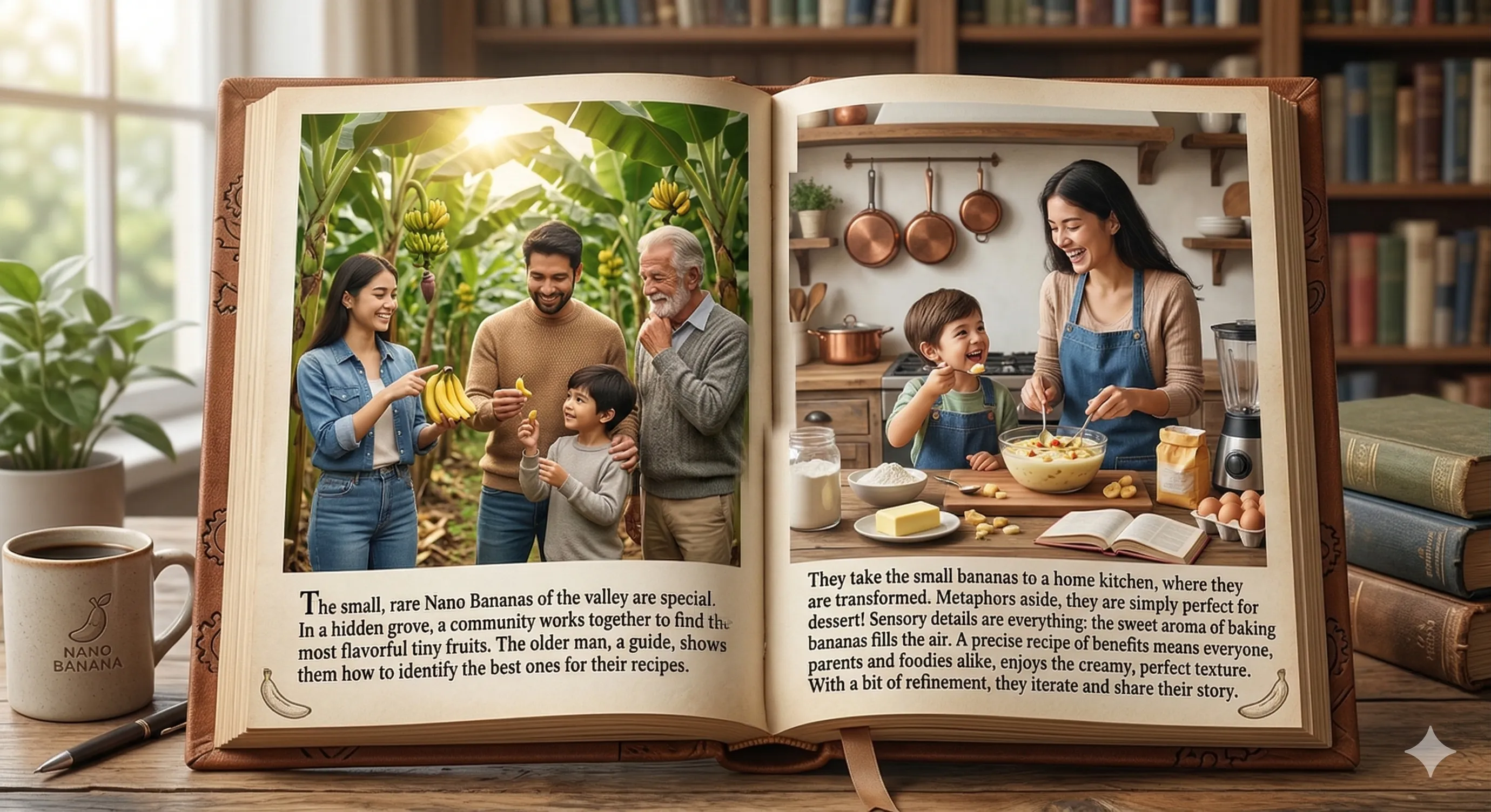
Curify's Nano Banana template gallery is built on top of Google's Gemini image generation model (codename **Nano Banana**). Instead of writing prompts from scratch — see [How to Write Prompts for Nano Banana] for that — you pick a template, fill in a few parameters, and Curify constructs the full prompt for you. But there's still real craft to *which* template you pick and *how* you fill its parameters. These 10 tips show you how to get consistently better results — from MBTI character cards to recipe infographics to vocabulary posters.
What Are Curify's Nano Banana Templates?
1. Browse templates — organized by topic (lifestyle, fitness, food, learning, design, vocabulary, and more)
2. Pick a template — each one is designed for a specific visual style and use case
3. Fill in parameters — short text inputs or dropdowns specific to that template
4. Generate — Curify fills your inputs into the base prompt and calls Nano Banana to produce the image
What templates look like in practice:
- An MBTI character illustration template asks for: personality type, character traits, background setting
- A recipe card template asks for: dish name, key ingredients, cuisine style
- A vocabulary poster template asks for: word category, language level, visual theme
Why templates beat blank prompts (for repeat work):
Templates encode tested prompt structures. The composition, style tokens, and negative prompts are already tuned — you only supply the content-specific details. Professional-looking results without deep prompt-engineering knowledge.
Categories available:
- Lifestyle, fitness, wellness
- Food, recipes, cuisine
- Education, vocabulary, language learning
- Design, illustration, posters
- Character art, MBTI, personality
- Watercolor, ink, monochrome styles
The inspiration gallery on each template page shows real examples generated by other users — the fastest way to understand what a template actually produces before you commit credits.
1. Browse the Inspiration Gallery Before Generating
What to look for:
- Consistency: Do the images have a unified style? That tells you the template is reliable.
- Range: How different are the outputs from each other? This shows you how much creative latitude your parameters have.
- Edge cases: Are any examples unusually good or bad? Notice which parameter choices led there.
The gallery is also the fastest way to calibrate your expectations — some templates produce highly detailed illustrations, others are more diagrammatic. Knowing which you're working with saves you from wasted generations.
2. Use "Remix This" to Start From a Working Example
How to use it well:
- Find an example whose style or composition you like
- Click "Remix this" to load its parameters
- Change just the content-specific values (the subject, name, topic, etc.) while keeping the structural ones
- Generate — you'll get a result in the same visual style but with your content
This technique is especially useful when a template has many parameters and you're not sure which ones control the visual style versus the content.
3. Be Specific in Your Parameter Values
Weak vs. strong parameter values:
- Weak: "dog" → Strong: "shiba inu with cream fur, alert expression, sitting upright"
- Weak: "food" → Strong: "soba noodles in dark miso broth, garnished with green onion and sesame"
- Weak: "fitness" → Strong: "morning trail run at sunrise, mountainous landscape"
Why specificity matters:
AI image models respond to concrete, visual language. Abstract or category-level words give the model too much freedom, which often means it falls back on generic compositions. Specific adjectives, contexts, and details constrain the output in useful ways.
A useful test: Read your parameter values aloud and ask: could an illustrator draw exactly this? If the answer is no, add more detail.
5. Understand What Each Parameter Actually Controls
- Content parameters control the subject: names, topics, words, objects, people
- Style parameters control how it looks: mood, color tone, time period, composition style
To figure out which is which without reading documentation:
1. Remix an example you like
2. Change just one parameter at a time
3. Generate and compare to the original
4. The parameter that produces the biggest visual shift is a style parameter; the one that changes the subject but keeps the look similar is a content parameter
Once you understand which parameters are style-controlling, you can lock them across multiple generations to get a consistent series.
6. Vary One Parameter at a Time When Iterating
A simple iteration workflow:
1. Start from a Remix of an example you like
2. Change exactly one parameter
3. Generate and evaluate
4. If better: keep the change and move to the next parameter
5. If worse: revert and try a different value for the same parameter
This is especially important early in your experience with a new template. After 5–6 iterations you'll have a strong intuition for how each parameter behaves, and you can start making multi-parameter changes confidently.
Credit-saving tip: Before spending credits generating, check if there are already examples in the gallery that cover the parameter combination you're curious about. Someone may have already explored that territory.
7. Save Examples That Work to Your Workspace
How to build a useful reference library:
- Save the 3–4 best examples from every template you use — these become your style benchmarks
- Save examples from templates you haven't tried yet but want to explore — they'll wait in your workspace as a to-do list
- Save competitor-style reference examples to understand what high-quality outputs look like for your niche
In your Workspace, saved items are combined with copied prompts into a single Saved tab, so you have one place to browse your full collection. Clicking any saved image takes you directly to its example page with the parameters visible.
8. Use Batch Templates for Campaign Sets
When to use batch vs. individual generation:
- Batch: you need a consistent set of visuals with similar style (e.g., 6 MBTI type illustrations, a series of vocabulary posters for a full lesson)
- Individual generate: you need a specific custom image with your exact parameters
Batch downloads are available through the "Download Pack" button that appears instead of the Save button on batch-enabled templates. No credits needed for the pre-built packs — you just download them directly.
9. Use Educational and Bilingual Templates for Language Content
Template types in this category:
- Vocabulary posters: visual grids organizing words by category with illustrations
- Bilingual object labeling: diagrams with labels in two languages side by side
- Group vocabulary: thematic clusters (foods, animals, household items) with visual mnemonics
- Multilingual watercolor posters: more artistic vocabulary displays suited for classroom walls or social posts
These templates often have a `language` or `vocabulary` topic tag. The parameter sets let you control the target word group, language pair, and visual density — so you can build a full lesson's worth of material from one template.
10. Review Examples Before Spending Credits on Edge Cases
Questions to ask before generating:
- Is there already an example with a similar subject in the gallery?
- Can I find that example by browsing similar templates? (check the "More like this" section on example pages)
- Is this combination likely to work given what I've seen this template produce?
When to generate:
- Your specific content isn't covered by existing examples
- You need a custom name, place, or topic that's unique to your use case
- You've iterated enough on a template to know it handles your input type well
When to hold off:
- You're not yet sure if this template's style fits your content
- You haven't looked at the inspiration gallery yet
- You have a fundamentally different use case than what the template examples show
Nano Banana Features to Know
- Template browser: Filter by topic tags (lifestyle, food, vocabulary, design, etc.) to find the right template for your use case
- Inspiration gallery: Real examples from each template — browse before generating
- Remix this: Load any example's exact parameters into the generation form in one click
- Save: Pin any example to your Workspace for future reference
- Generate: Create a custom image using your parameters (costs 10 credits)
- Download Pack: One-click download of pre-built batch image sets (no credits needed)
- Workspace: Your personal library of saved examples, copied prompts, and generated images
- Example detail page: Full-size view of any example with parameters visible and a "Generate your own" panel
How Curify Powers Nano Banana
- Template management: each template is a tested prompt structure with defined parameter slots
- Image generation: your parameters are inserted into the base prompt and sent to an AI image model
- CDN delivery: generated images are served from a global CDN for fast loading
- Workspace sync: your saved examples and generated images are stored to your account and accessible across devices
- Credits system: 10 credits per generation; batch packs and saved examples are always free to access
Getting Consistently Good Results
1. Browse the inspiration gallery first
2. Remix an example close to what you want
3. Change only the parameters you need to customize
4. Generate — evaluate the result
5. Adjust one parameter at a time if the output needs refinement
Nano Banana's templates handle the prompt engineering. Your job is to give them specific, concrete inputs and iterate methodically. Once you know a template well, you can generate production-quality images in under a minute.
Frequently Asked Questions
Curify's Nano Banana template gallery is built on top of Google's Gemini image generation model (codename **Nano Banana**). Instead of writing prompts from scratch — see [How to Write Prompts for Nano Banana] for that — you pick a template, fill in a few parameters, and Curify constructs the full prompt for you. But there's still real craft to *which* template you pick and *how* you fill its parameters. These 10 tips show you how to get consistently better results — from MBTI character cards to recipe infographics to vocabulary posters.
What is this?
Content description...
Nano Banana Features to Know
Core tools inside Nano Banana:
- Template browser: Filter by topic tags (lifestyle, food, vocabulary, design, etc.) to find the right template for your use case
- Inspiration gallery: Real examples from each template — browse before generating
- Remix this: Load any example's exact parameters into the generation form in one click
- Save: Pin any example to your Workspace for future reference
- Generate: Create a custom image using your parameters (costs 10 credits)
- Download Pack: One-click download of pre-built batch image sets (no credits needed)
- Workspace: Your personal library of saved examples, copied prompts, and generated images
- Example detail page: Full-size view of any example with parameters visible and a "Generate your own" panel
How Curify Powers Nano Banana
Nano Banana runs on Curify's AI generation infrastructure. Curify handles:
- Template management: each template is a tested prompt structure with defined parameter slots
- Image generation: your parameters are inserted into the base prompt and sent to an AI image model
- CDN delivery: generated images are served from a global CDN for fast loading
- Workspace sync: your saved examples and generated images are stored to your account and accessible across devices
- Credits system: 10 credits per generation; batch packs and saved examples are always free to access
Getting Consistently Good Results
The pattern that works across all templates:
1. Browse the inspiration gallery first
2. Remix an example close to what you want
3. Change only the parameters you need to customize
4. Generate — evaluate the result
5. Adjust one parameter at a time if the output needs refinement
Nano Banana's templates handle the prompt engineering. Your job is to give them specific, concrete inputs and iterate methodically. Once you know a template well, you can generate production-quality images in under a minute.
One image is a sample. A product line needs the whole set.
Every Curify template runs in bulk. Send the list — SKUs, words, characters, teams, scenes — and we return the full set generated against one locked visual direction, so the line reads as a collection instead of forty unrelated images.
- Works on any template, not a special few — the same prompt structure applied across your whole list.
- One locked visual direction across the set, so a 40-design line stays on-brand end to end.
- Production-ready output where the format calls for it — die-cut paths, dielines, print resolution.
Take the next step
Putting what you read into practice.
Browse related topics
More templates and prompts in these areas.
Related Articles
Nano TemplatesHow to Write Prompts for Nano Banana: 10 Tips for Creators
Ultimate Directory of Nano Banana Prompts