
Curify · October 20, 2026 · Photo preparation guide
How to Choose a Couple Photo for AI Wedding Portraits
A convincing wedding-inspired portrait starts with a photo in which you can recognize both people clearly. Before choosing a garden, studio or traditional wedding look, check what the source actually shows: faces, skin tone, hair and the details you want the result to retain.
This guide explains how to prepare a reference for the AI wedding photo generator. The existing concept artwork below illustrates things to inspect; it is not a benchmark of that tool or a client delivery.
Choose one clear photo of both adults
- Both faces visible: choose a frame without sunglasses, deep facial shadows or hair covering important features. If one person is far behind the other, use a different photo.
- Enough detail to compare: zoom in on each face. If you cannot distinguish the eyes and mouth, the source gives you little basis for checking the output. Use the original file rather than a screenshot where possible.
- A readable pose: avoid hands hidden behind faces or tightly overlapping arms for your first attempt. A simple pose makes changes easier to notice.
- A suitable crop: a close portrait gives you facial detail; a wider frame shows posture and clothes. A generated full-length result from a headshot necessarily invents details outside the original crop.
The current tool takes one JPEG, PNG or WebP reference. Start with one photograph of you together, not a contact sheet, a before/after poster or two unrelated portraits pasted side by side. Use photos you have permission to upload.
Choose the scene, then write a short brief
The tool offers studio, garden and traditional Chinese wedding portrait styles. Choose one, then describe the setting and the details that matter. These are requests to a generative model, not guarantees that every feature will remain unchanged.
Example brief for a garden portrait
Soft afternoon light in a quiet garden. Understated wedding attire and a relaxed pose. Keep both adults recognizable, including their hair colour and facial features. Avoid text, logos and extra people.
For a pre-wedding concept, describe the atmosphere you want to explore. For a particular garment, identify the details you care about, then check them in the result: an instruction to preserve lace or embroidery does not establish that it happened.
Use these wedding concepts as a review checklist
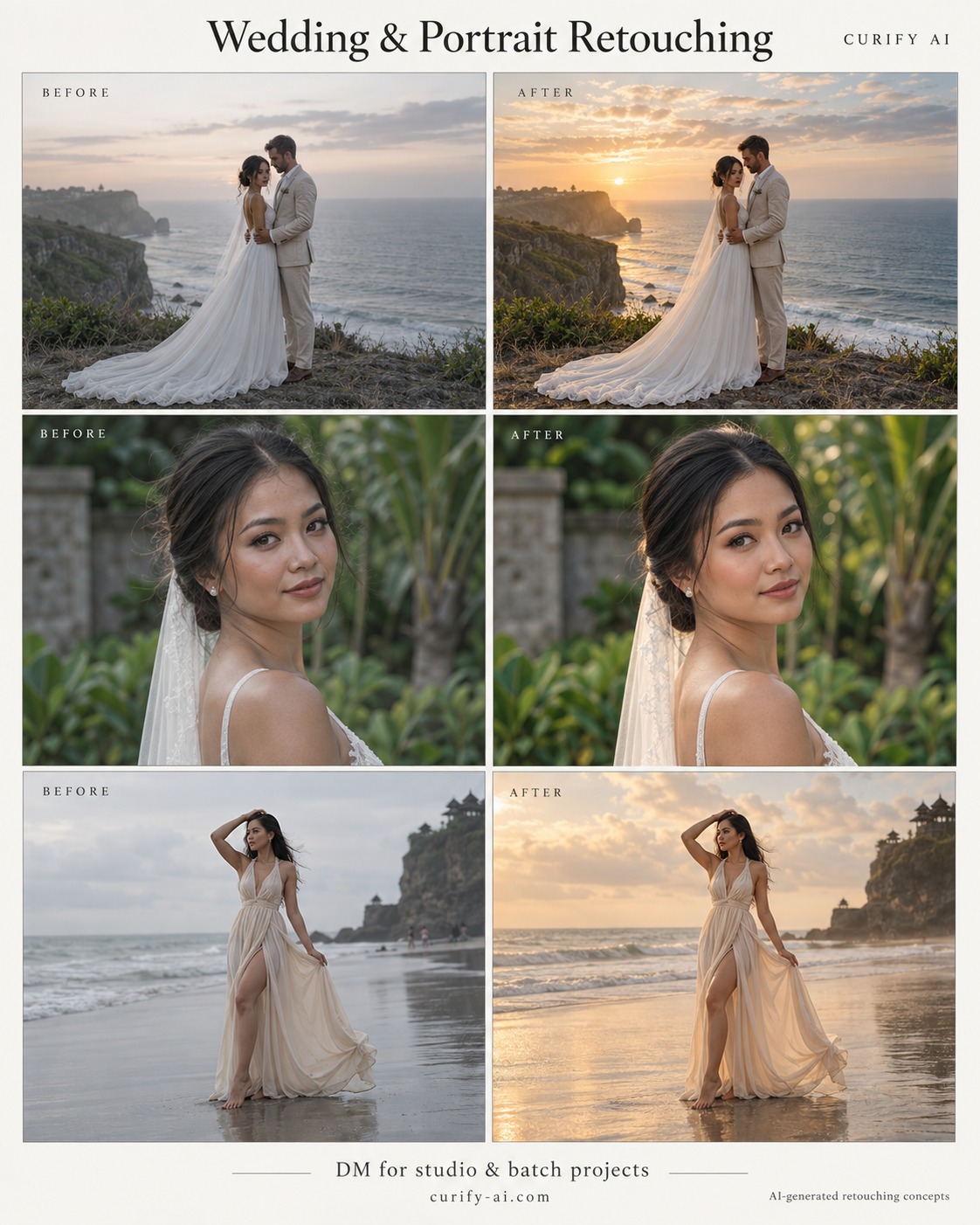
Cliff-top couple: the concept changes the light and sky. When reviewing a new generation, compare both faces separately and inspect the veil, dress silhouette and overlapping hands. An attractive sunset does not establish that the couple’s identities were preserved.
Bridal close-up: look at eyes, hairline and skin texture rather than brightness alone. This single-person illustration is useful for discussing detail checks; it is not the recommended two-person upload for the couple generator.
Beach portrait: examine the dress edges, feet and background. A generated scene can change objects or add details. If your goal is to preserve an actual wedding moment, consider editing the original photograph instead.
Review the result before generating a whole collection
- Compare each face with the source. Check age, facial proportions, skin tone and distinctive features.
- Inspect hands, arms, teeth, jewellery and any contact between the two people.
- Check garment seams, lace, embroidery and the boundaries of a veil against the background.
- Decide whether the scene fits your intended use. Label it appropriately when sharing; it is not documentary evidence of a ceremony.
If a face is wrong, try a clearer reference before requesting more elaborate styling. If only the setting misses your brief, simplify the setting instructions. Review each new result: repeated generation is not a promise of identical people or consistent garments.
Generation currently uses 5 credits per completed image. Watermark removal is a separate optional purchase shown with the result. Read the displayed price before generating or purchasing a clean download.
Generation or wedding photo editing?
Use generation when you want a newly imagined portrait or pre-wedding concept. Use wedding and portrait editing when the task concerns an existing photograph. Photographers seeking a consistent finish across captured galleries can discuss batch wedding photo editing; that service starts with a brief and sample review.
For editing budgets, read the wedding photo retouching cost guide. For a creative portrait, choose your photo and open the wedding generator.